SQL Indexing
You added a custom Tracking Number field to the Sales Invoice Header. In Sandbox, it runs smooth. But in Production with 500,000+ records? Filtering drags for 15 seconds and locks up the UI.
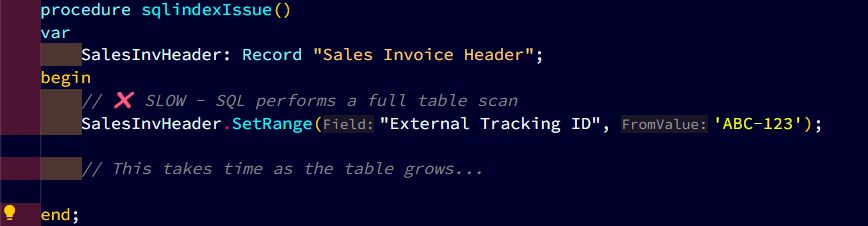
The culprit? A Table Scan. SQL is reading every single row to find your data because you didn’t give it a map.
✖️ The Problem: Searching without an index
When you filter on a field that isn’t part of a key, SQL has to look at every page of data. This is expensive in terms of CPU and I/O.
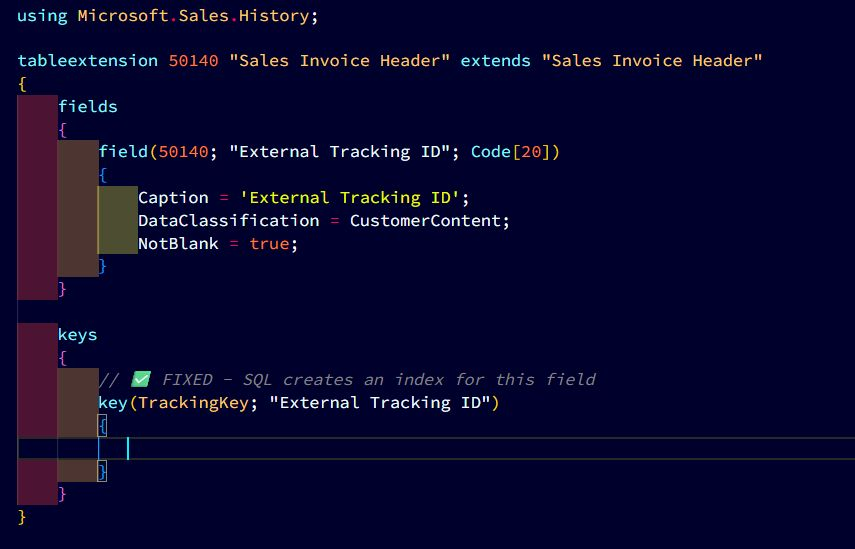
🛠️ The Fix: Adding a Secondary Key
In AL, creating an index is as simple as defining a key in your table extension. Behind the scenes, this generates a balanced-tree structure in SQL.
Instead of scanning half a million rows one by one, the engine can now seek directly to the matching records, turning a 15-second freeze into an instant result.
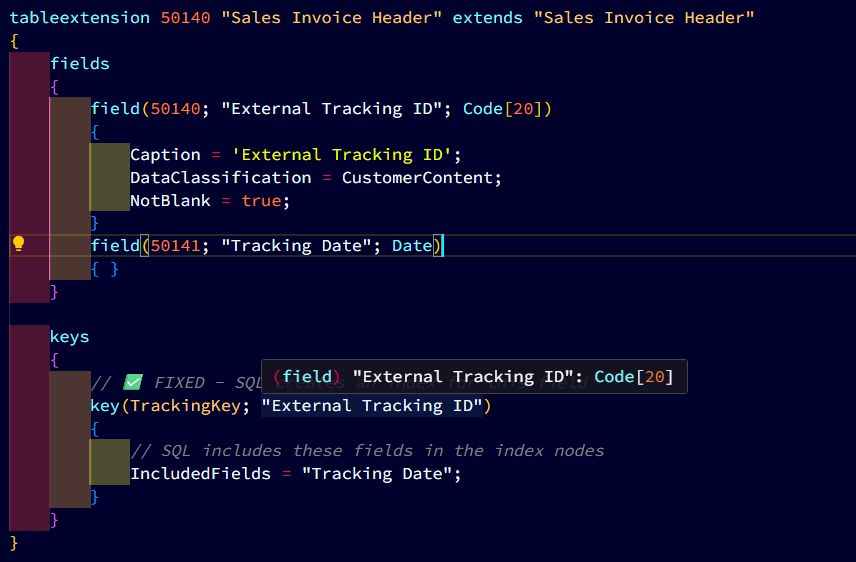
💡 Pro-Tip: IncludedFields (The “Covering” Index)
Sometimes you don’t just want to find the record, you want to read other values immediately. In Business Central, you can use IncludedFields to create a Covering Index. This stores extra data at the “leaf” level of the index, so SQL doesn’t even have to look at the main table.
💡The Bottom Line
Indexes are the secret to lightning-fast reads. But every insert or update means SQL has to adjust the index-so writes get a little heavier.
Rule of Thumb:
✅ Do index fields used in frequent filters, FactBoxes, or API joins.
❌ Don’t index every field “just in case” – you’ll bloat your database and slow down posting.
Indexes are like turbochargers: amazing when you need speed, but costly if you bolt them onto everything.
Is your search bar lagging? Check your keys.